First Steps with PowerCLI


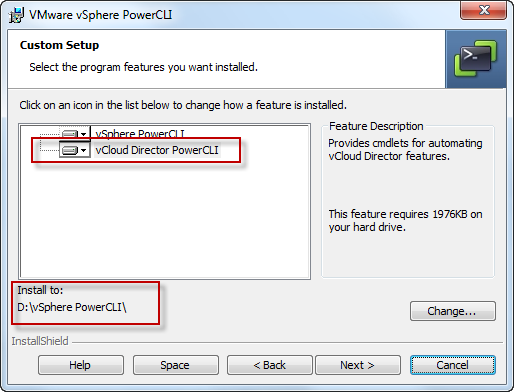
When starting to use PowerCLI 5.0.1 for the first time, there are a few things that will help you start off a good foot. I for one, have decided when installing the PowerCLI on my system to modify the installation to add the vCloud Director PowerCLI feature and to change the path of installation, so that I can quickly find my .PS1 on my development machine.

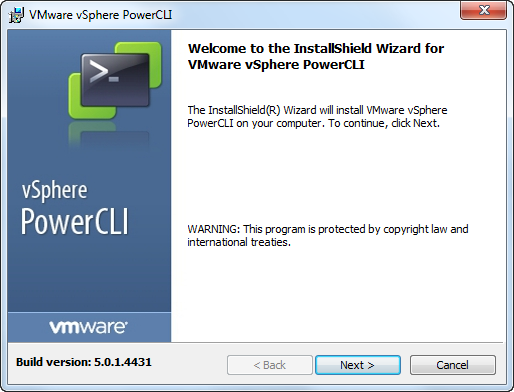
Installing PowerCLI 5.0.1 Build 4431

Selecting vCloud Director PowerCLI feature & changing install Path

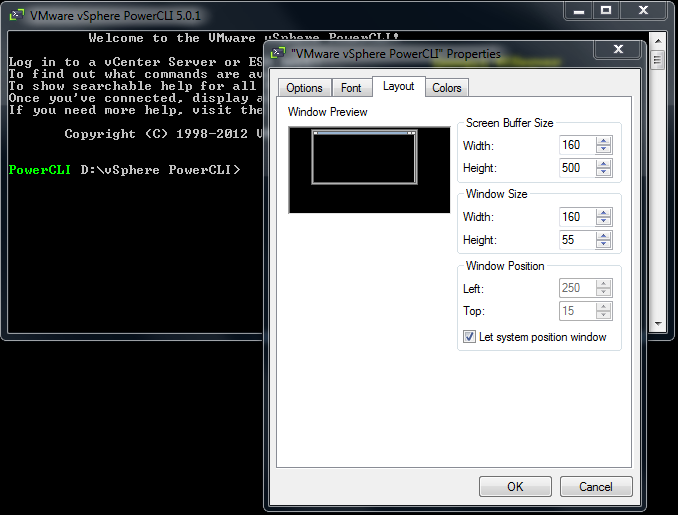
Once installed on my development machine, I add start the PowerCLI to my taskbar and start it. I then modify the Layout settings to get a better usable window.

Modifying PowerCLI Layout

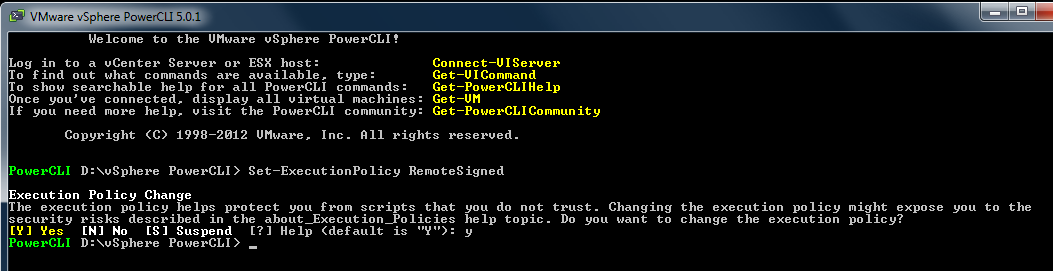
And now we are getting to the two basic commands you add to your PowerCLI to ensure you can run RemoteSigned code.

[box] set-ExecutionPolicy RemoteSigned[/box]

Set-ExecutionPolicy RemoteSigned

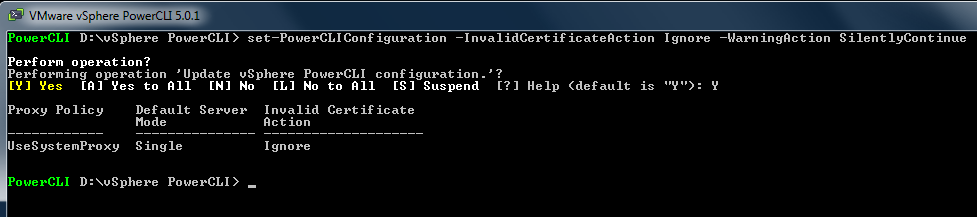
As I’m developping my code on a system other than the vCenter Server. I will get SSL Certificates warnings if I remotely connect to my vCenter. To ignore the Certificate warnings I use to following command

[box] Set-PowerCLIConfiguration -InvalidCertificateAction Ignore -WarningAction SilentlyContinue[/box]

Set-PowerCLIConfiguration -InvalidCertificateAction Ignore -WarningAction SilentlyContinue

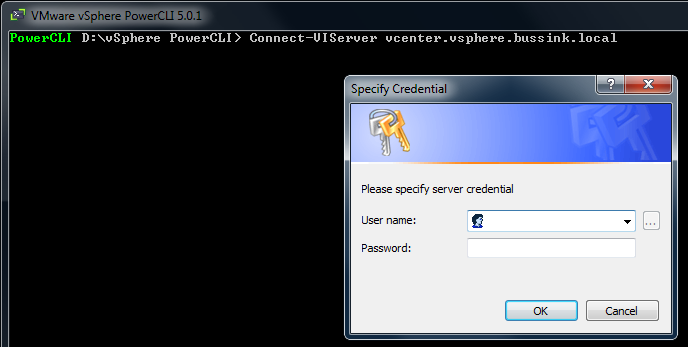
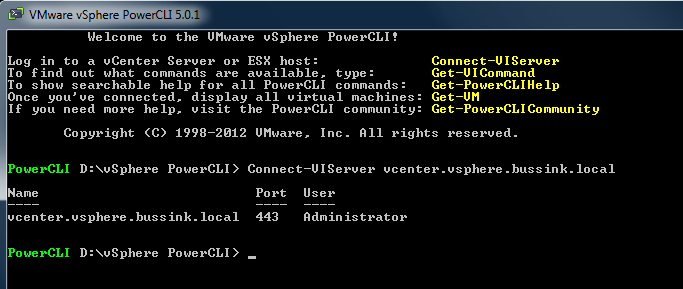
When connecting to my vCenter I now only get a pop-uo for the User Credentials.

Connect-VIServer will request Credentials

I can also save my credentials for future use.

Connect-VIServer with Credentials saving

And so the next time I don’t even need to re-enter these credentials.

Connect-VIServer using saved Credentials


Create vCenter database quickly with Transact-SQL

Creating new databases for VMware vCenter is something I have to do over and over again. I use mostly Microsoft SQL Server 2008 R2 so here are six quick procedures to simplify the creation and make all your vCenter databases to the same standard. I keep my Transact-SQL scripts in Evernote, so I just need to make six Copy & Paste and my vCenter database is created within 3 minutes. You can find the Transact-SQL to download at the bottom of this post.

My general rule when I create the VMware vCenter database is to have my user database on a separate disk from the operating system. This disk is formatted with 64K block size. SQL Server works with two specific IO request size 8K and 64K in general, so having 64K block size is optimum for SQL Server databases (See Disk partition alignment Best Practice for SQL Server ). I usually create a directory path for my SQL database D:\Microsoft SQL Server in which I will create two directories for the vCenter databses, vcenter-server and vcenter-update-manager.
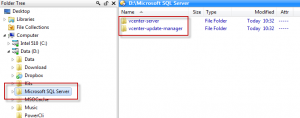
Microsoft SQL Server directory structure for User Databaes

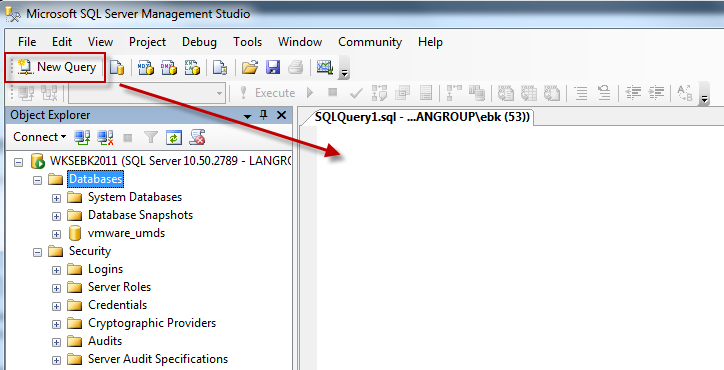
Using the Microsoft SQL Server Management Studio interface we can start a New Query, in which we will add the Transact-SQL code.
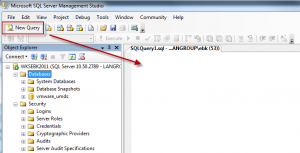
SQL Server Management Studio – Open a New Query

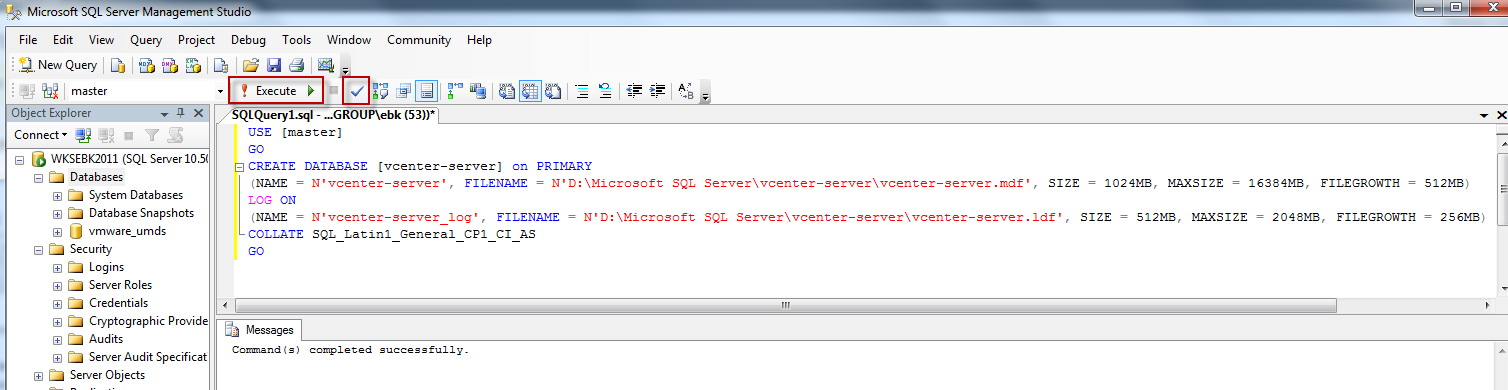
Now let’s insert the Transact-SQL script to create the new vcenter-server database. My database settings limit the database to grow past 16GB, and increases the database as it grows by blocks of 512MB. The initial size starts at 1GB. The code below is a bit wide for this blog, but you can find the full Transact-SQL code at the bottom.

USE [master]
GO
CREATE DATABASE [vcenter-server] on PRIMARY
(NAME = N’vcenter-server’, FILENAME = N’D:\Microsoft SQL Server\vcenter-server\vcenter-server.mdf’, SIZE = 1024MB, MAXSIZE = 16384MB, FILEGROWTH = 512MB)
LOG ON
(NAME = N’vcenter-server_log’, FILENAME = N’D:\Microsoft SQL Server\vcenter-server\vcenter-server.ldf’, SIZE = 512MB, MAXSIZE = 2048MB, FILEGROWTH = 256MB)
COLLATE SQL_Latin1_General_CP1_CI_AS
GO
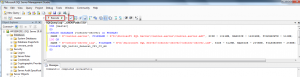
vCenter SQL Database creation with settings

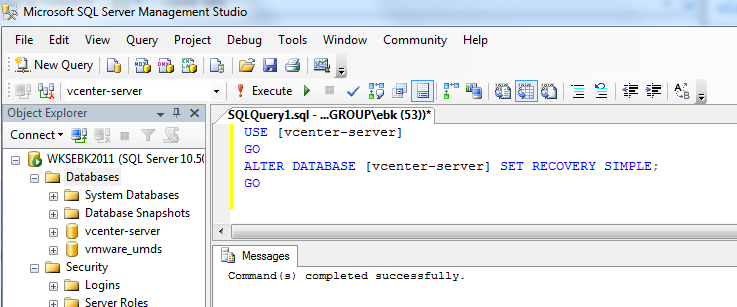
Lets now change the Recovery mode of our database for our needs, to Simple.

USE [vcenter-server]
GO
ALTER DATABASE [vcenter-server] SET RECOVERY SIMPLE;
GO
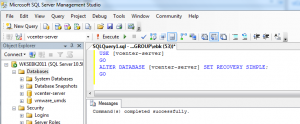
vCenter SQL Database alter recovery mode to Simple

Lets create a dedicated vCenter database user such as vpxdb.

USE [vcenter-server]
GO
CREATE LOGIN [vpxdb] WITH PASSWORD = ‘insert-a-password-here’, DEFAULT_DATABASE = [vcenter-server], DEFAULT_LANGUAGE=[us_english], CHECK_POLICY=OFF
GO
CREATE USER [vpxdb] for LOGIN [vpxdb]
GO
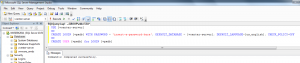
SQL Database vpxdb user creation

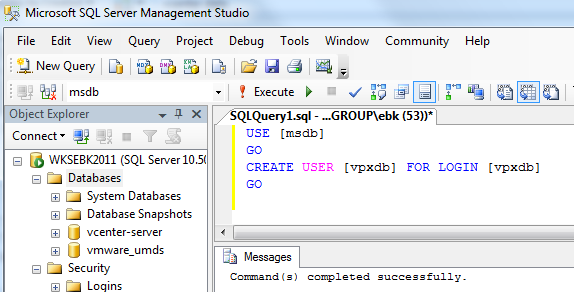
Now we let the newly create database user connect to the vCenter database.

USE [msdb]
GO
CREATE USER [vpxdb] FOR LOGIN [vpxdb]
GO
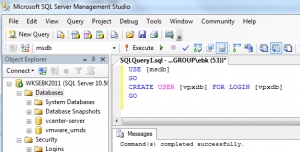
SQL Database vpxdb user login for vCenter Database

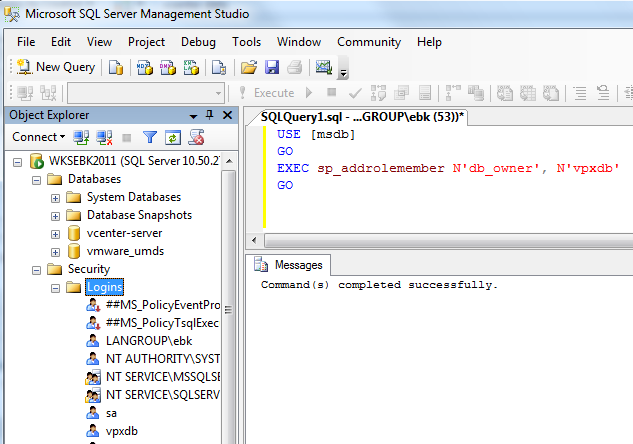
We allow the newly create vpxdb database user have db_owner rights to the [MSDB] database, so that the user can create the SQL Agent jobs in SQL.

USE [msdb]
GO
EXEC sp_addrolemember N’db_owner’, N’vpxdb’
GO
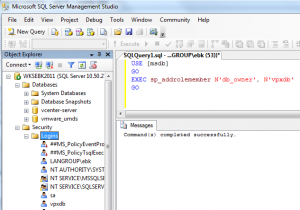
SQL Database user vpxdb db_owner rights to MSDB

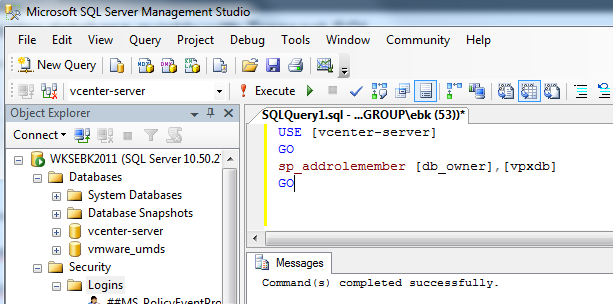
And last we change the ownership of the vCenter Database for the vpxdb user.

USE [vcenter-server]
GO
sp_addrolemember [db_owner],[vpxdb]
GO
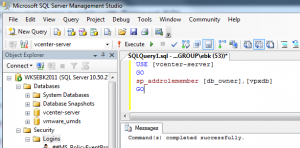
SQL Database user vpxdb db_owner rights to vcenter-database

You can find the all the Transact-SQL code in this simple text file vCenter-SQL-TransactSQL-database.txt. If you want the same type of Transact-SQL script to help you setup the vCenter Update Manager database check out this text file vCenter-Update-Manager-SQL-TransactSQL-database.txt
ESXi Multi-NIC & Multi-VLAN vMotion on UCS

I’ve been deploying a Cisco UCS Chassis with multiple Cisco B230 M2 Blades. Yet the uplinks switches of the Fabric Interconnect are medium-Enterprise sized Switches, and not some Nexus 5K or better. In a vSphere 5.0 cluster designs you add one or more NICs to the vMotion interface. With the enhancements of Sphere 5.0 you can combine multiple 1G or 10G network cards for vMotion, and get better performance.

Duncan Epping wrote on the 14th December 2011 on his site
[quote]”I had a question last week about multi NIC vMotion. The question was if multi NIC vMotion was a multi initiator / multi target solution. Meaning that, if available, on both the source and the destination multiple NICs are used for the vMotion / migration of a VM. Yes it is!”[/quote]

I was a bit worried by having my ESXi 5.0 vMotion traffic go up the Fabric Interconnect from my source Blade, across the network switches and back down the Fabric Interconnect and the target Blade. I decided to create two vmkernel port for vMotion per ESXi, and segregate them in two VLAN. Each VLAN is only used inside one Fabric Interconnect.

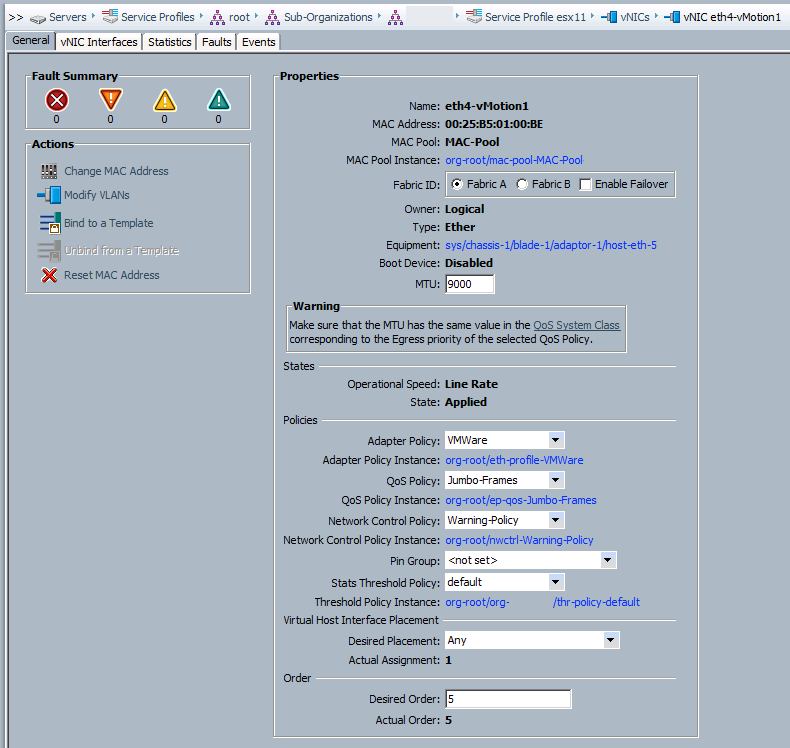
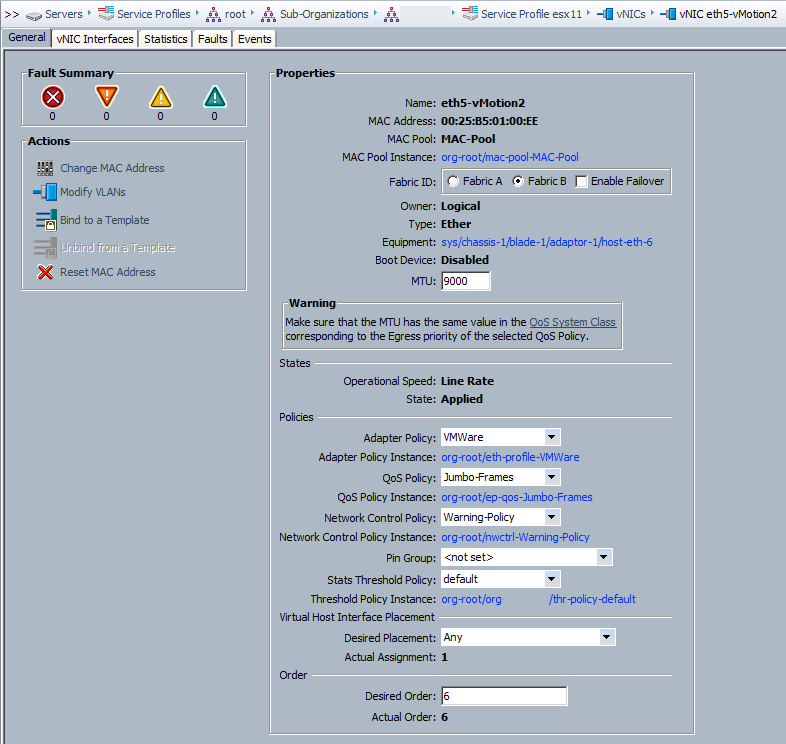
vNIC Interface eth4 for vMotion-A on Fabric A (VLAN 70)

vNIC Interface eth4-vMotionA

vNIC Interface eth5 for vMotion-B on Fabric B (VLAN 71)

vNIC Interface eth5-vMotionB

And now let’s try this nice configuration.

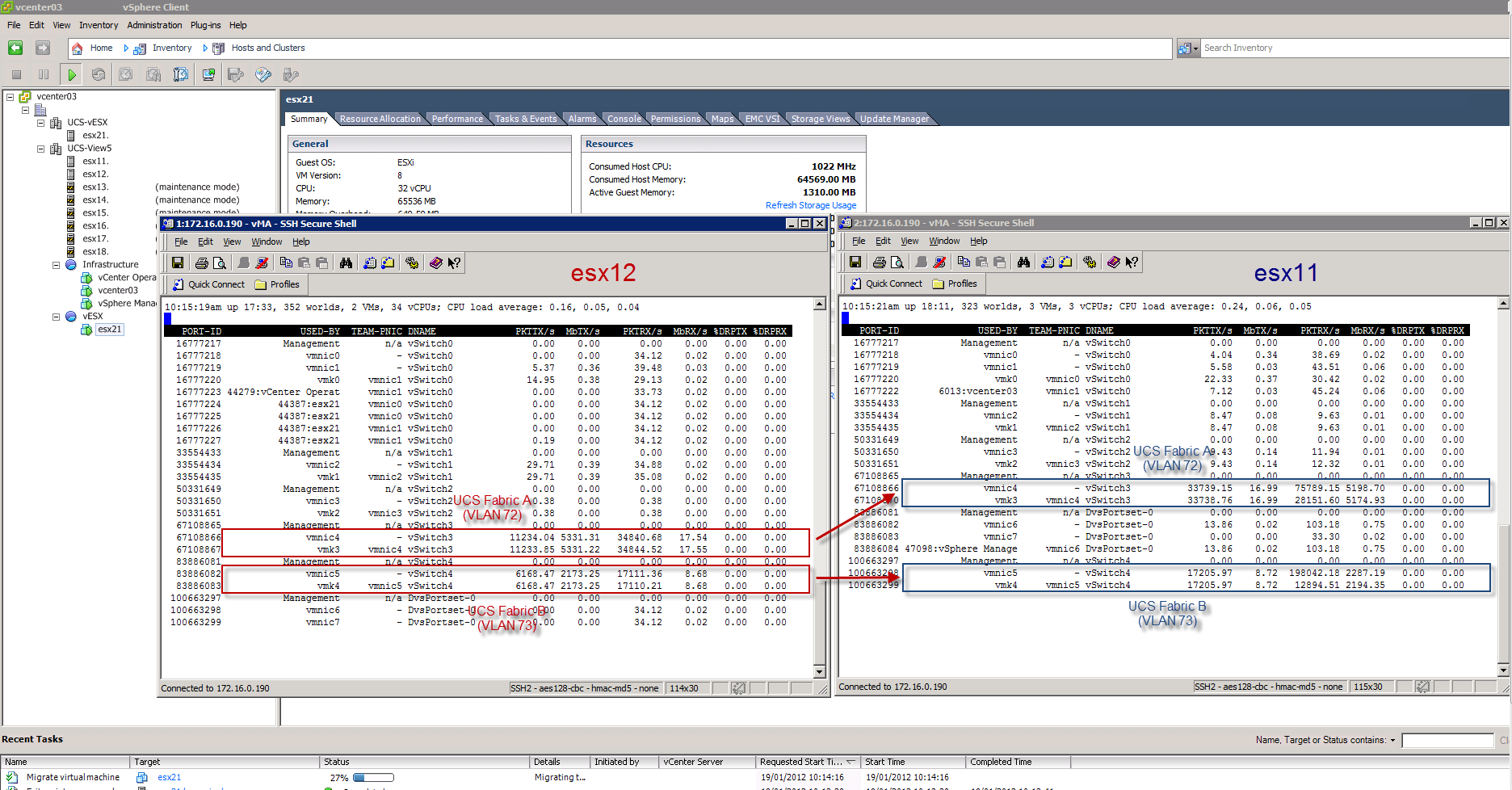
The VM that would be used for testing purposes is a fat nested vESX with 32 vCPU and 64GB of memory (named esx21). It is vMotion’ed from esx12 (Source network stats in Red) towards esx11 (Target network stats in Blue).

The screenshot speaks for itself… we see that the vMotion uses both NICs and VLANs to transfer the memory to esx11. It flies at a total speed of 7504MbTX/s to 7369MbRX/s in two streams. One stream cannot pass the 5400Mb/s rate, because of the limitation of the Cisco 2104XP FEX and the 6120XP Fabric Interconnect. Each 10Gb link is used by two B230 M2 blades.

If you want to learn how to setup Multi-NIC vMotion, check out Duncan’s post on the topic.

Thanks go to Duncan Epping (@duncanyb) and Dave Alexander (@ucs_dave) for their help.